
A desktop AI assistant can save time without making the work itself disappear. That distinction matters. ChatGPT can help draft an email, explain a code error, or summarize a file, but it does not automatically know what is on your screen or verify that its answer is correct. Its practical advantage is often simpler: it is easier to bring a question, image, or document into a conversation when the assistant is close at hand.
For people comparing a Mac or Windows app with the browser, the useful question is not which version is universally better. It is whether quick access and desktop-oriented workflows fit the way you work—and whether the available features suit your account and device. Understanding those trade-offs makes it easier to choose a safe download and use the app without mistaking convenience for reliability.
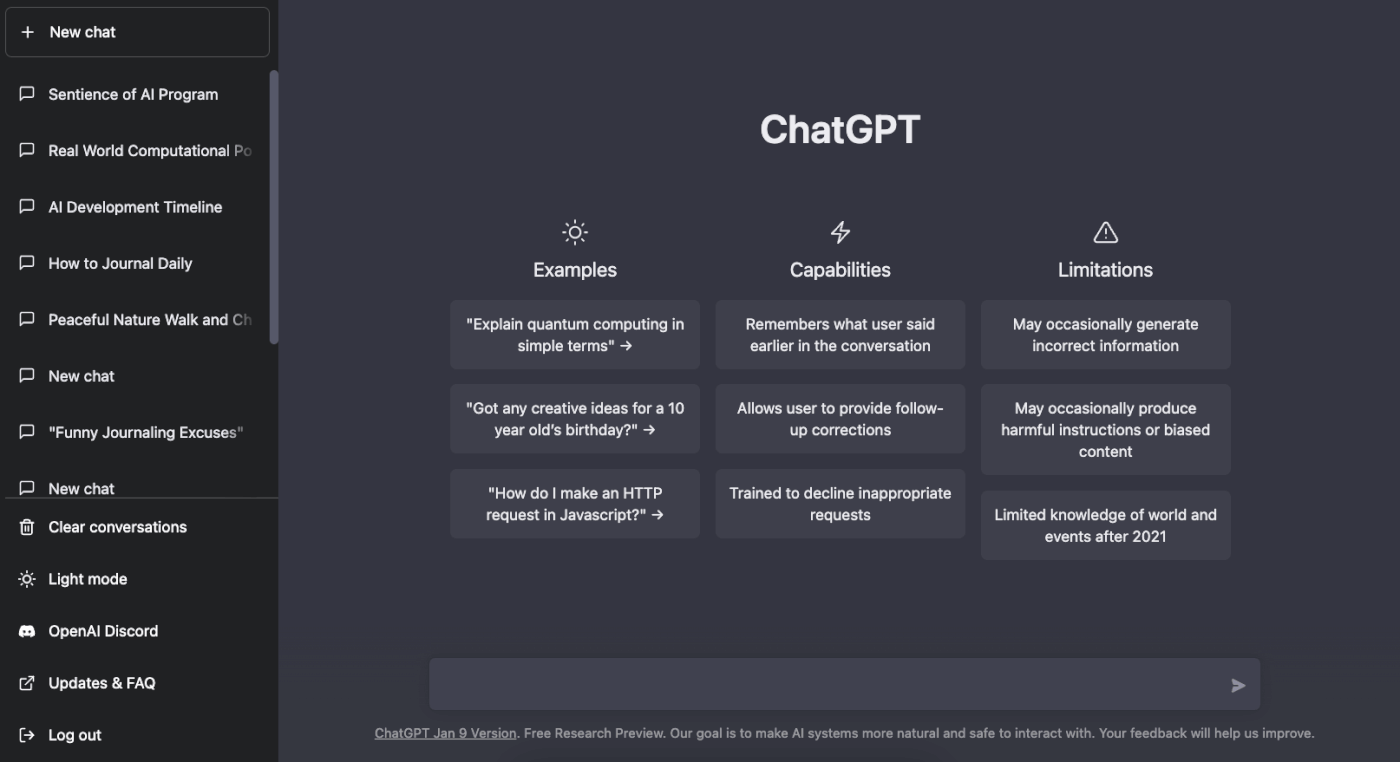
What a desktop app changes—and what it does not
ChatGPT is an AI assistant for writing, analysis, coding, brainstorming, learning, and other general tasks. The desktop app does not turn it into an all-seeing layer over your computer. Instead, it provides a dedicated place to ask questions and, where supported, bring relevant material into a conversation. That can mean attaching a file or image, sharing a screenshot, or using a keyboard shortcut to open the assistant without fully switching away from the task at hand.
This small change in access can affect how people use the tool. A browser tab encourages a deliberate visit; a companion window can make it easier to ask a question while editing a document, reviewing a spreadsheet, or troubleshooting code. The benefit is reduced friction, not guaranteed insight. If a user provides incomplete context, the answer may be incomplete too.
That is why “desktop assistant” is best understood as a workflow description rather than a promise of deep computer access. The app can work with material you choose to share, subject to the features and permissions available. It should not be assumed to read every open file, monitor your work, or take actions on your behalf simply because it runs on your computer.
How the interaction works in practice
A useful mental model is a loop: provide context, request a transformation or explanation, inspect the response, then refine or verify it. For example, you might attach a screenshot of an error message and ask what it means; paste a draft and request a clearer version; or provide a code excerpt and ask for likely causes of a bug. ChatGPT generates a response from the information in the conversation and the capabilities available to that user. It does not thereby establish that the proposed fix is correct.
Files and images can make a request more concrete, but they do not remove the need to frame it well. “Summarize this” may be enough for a short document. For a contract, technical report, or long spreadsheet, specify what decision you are trying to make, which details matter, and whether you want uncertainty called out. For coding, include the relevant error, expected behavior, and surrounding code when appropriate. Better context can improve usefulness; it cannot guarantee accuracy.
Voice can offer another way to interact when supported by the user’s account, device, region, and app version. Speaking may be convenient for brainstorming or asking a quick question, but voice does not make the answer more authoritative. It can also be less suitable for sensitive material or tasks where exact wording and careful review are important.
Choosing a download and checking feature availability
ChatGPT has desktop experiences for macOS and Windows, alongside web and mobile access. To install the app, use official OpenAI or ChatGPT download pages, or a trusted app store. Avoid third-party installers that claim to provide a special or modified version: an installer is a security decision, not just a shortcut. If you want a starting point for finding the download, use this chatgpt download resource, then verify that the final destination is an official source or trusted store before installing anything.
After installation, sign in through the appropriate account and check which tools are actually available. Models, voice, memory behavior, connectors, and administrative controls can differ according to plan and organization settings. A feature shown in a general product description may not be enabled for every account. On a work-managed device, organization policies may also limit which tools or data can be used.
For a simple decision, compare the app with the browser on three questions: Do you benefit from keyboard-based access? Do you regularly bring screenshots or files into assistant conversations? Does your account support the tools you expect to use? If the answer to all three is no, the browser may be enough. If quick access removes repeated context-switching from your day, the desktop app may be worthwhile even when its underlying answers are similar.
Productivity gains have a boundary
ChatGPT is commonly used to explain code, draft changes, debug issues, and reason through implementation choices. In those workflows, it can be valuable as a second pair of eyes: it may suggest a plausible cause, describe unfamiliar syntax, or offer an initial version of a routine. But the person using it still needs to test the code, check for security and compatibility problems, and decide whether a proposed change fits the wider system. A confident explanation is not the same as a tested result.
The same boundary applies to writing and analysis. An assistant can help reshape a rough draft or organize information, but users remain responsible for factual claims, confidential data, tone, and final decisions. Convenience can even increase risk if it encourages people to share material without considering privacy or to accept fluent answers without checking them. A practical rule is to share only what is appropriate for the account and setting, and to verify consequential claims against reliable source material.
Cross-device availability can help maintain continuity: a conversation may be accessible through web, desktop, or mobile experiences. Still, continuity should not be confused with identical capabilities everywhere. Features and settings may vary, and a useful workflow on one device may not translate exactly to another. If a task depends on a particular tool, check that it is available where you plan to work.
What to watch as desktop AI develops
Recent ChatGPT product messaging emphasizes a broad mix of answering questions, writing, creating images, completing work, and coding, with free access and an app download presented as ways to get started. That breadth signals an effort to make one assistant useful across many tasks; it does not mean every capability is present for every user or that the app can safely automate every workflow.
The more practical signal to watch is how access, account controls, and supported tools evolve together. If desktop entry points continue to make it easier to bring relevant context into a conversation, the app could become more useful for short, repeated tasks. Whether that improves productivity will depend on how accurately the assistant handles the material, how well users verify its output, and what their organization permits. Convenience is measurable in fewer steps; quality still has to be judged task by task.
Frequently asked questions
Is ChatGPT available as a desktop app for Mac and Windows?
Yes. ChatGPT offers desktop app experiences for macOS and Windows, as well as web and mobile access. Download through official OpenAI or ChatGPT pages or a trusted app store, and check that the app supports your device and account.
Can the desktop app analyze files or screenshots?
You can bring files, images, and screenshots into conversations for tasks such as summarizing, explaining, editing, or analysis when those capabilities are available to your account. The assistant’s response still needs review, especially when the material is technical or the decision is consequential.
Are all ChatGPT features included for every user?
No. Available models, tools, voice workflows, memory behavior, connectors, and administrative controls can depend on the account plan, device, region, app version, and organization settings. Check your own app rather than assuming a feature described generally will be enabled for you.